How to Migrate from Wave to Zoho Books (2026): The Complete Step-by-Step Guide
If you’re trying to migrate from Wave to Zoho Books, you already know why. Wave has been winding down on businesses outside the US and Canada for a while now. First the bank feeds went, then Stripe-powered invoicing, and today international users can’t send invoices or payment reminders at all. The account still opens, but most of what made it useful is gone.
Wave’s own suggestion is to move to Zoho Books, its official migration partner. That’s fair advice as far as it goes. The trouble is that the official documentation is written like documentation, so it covers every step but says very little about the parts that will actually eat your weekend.
Worth knowing before you start: Wave states that current users can get a year of free service on a custom-built Zoho Books subscription by signing up through the link in its own help article. Check that it still applies to your account before you pay for anything.
This guide runs through the whole migration in order. More to the point, it tells you up front which data can’t make the trip, so you can plan around it instead of finding out halfway through reconciliation.
Who this guide is for: existing Wave users moving to Zoho Books, especially those outside the US and Canada. If you’re in the US or Canada, Wave still works and you may not need to move at all. In that case, our comparison of Wave alternatives is a better place to start.
Before you start: what does not migrate
Read this bit first. Most painful migrations start with someone assuming it’s a one-click transfer.
Data you can’t export from Wave at all:
- Quotes (estimates). No export path. You’ll recreate these in Zoho Books.
- Recurring invoices. No export path either.
- Receipt transactions. Same story.
Data that exports but won’t import cleanly:
- Bill payments. Zoho Books can’t import them, so every paid bill needs its payment entered by hand. If a vendor has several paid bills, you can record one consolidated vendor payment covering all of them and save yourself some clicking.
- Expenses. Wave won’t export these as a standalone file. In Zoho Books they come in attached to your bank transaction import instead.
- Paid invoices and their payments. The migration wizard only handles outstanding invoices, meaning unpaid and partially paid ones. Anything already settled is a separate manual import.
- Wave’s “all transactions” export. It gives you one combined file with everything mixed together, and Zoho Books can’t read that format. You’ll be reshaping the spreadsheet yourself before it’s usable.
- Receipt attachments. These come down as a separate ZIP and upload into a different module entirely.
So here’s the practical question worth asking before you begin. If your Wave history is long and messy, a full historical migration may genuinely cost more hours than it’s worth. Plenty of businesses are better off moving open balances and active records only, then keeping the Wave export archived as a read-only record. Method 1 below does exactly that.
Two ways to migrate from Wave to Zoho Books
There are two ways to migrate from Wave to Zoho Books, and choosing the wrong one usually means redoing work.
Method 1, the clean start. You bring across customers, vendors, products and your opening balances, and leave historical transactions in your Wave archive. It’s faster, much harder to get wrong, and it’s the right call for most freelancers and small businesses. Ideally you’d do it at the start of a financial year.
Method 2, the full history. You additionally migrate invoices, bills and receipts. Slower, more manual cleanup afterwards, and worth it mainly if you need historical reporting inside Zoho Books rather than in an archived file.
Either way, settle on a firm migration date before you touch anything. That one date drives your opening balances and your Trial Balance export, and getting it wrong is the single most common reason numbers refuse to reconcile later.
Step 1: Learn the vocabulary changes
Zoho Books renames a fair few things you know from Wave. Getting these straight early saves a lot of confused searching.
| In Wave | In Zoho Books |
|---|---|
| Business | Organization |
| Products & Services | Items |
| Price | Selling Price and Cost Price (two separate fields) |
| Notes / Terms | Customer Notes and Terms & Conditions (also separate) |
| Receipts | Expenses |
| Income by Customer | Receivable Summary / Receivable Details |
| Purchases by Vendor | Payable Summary / Payable Details |
| Aged Receivables | Aging Summary |
| Aged Payables | Aging Summary |
Two navigation differences are worth knowing straight away. Reconciliation lives inside the Banking module rather than having its own Accounting tab, and Settings sits behind the gear icon at the top right instead of in the left sidebar. Integrations are nested inside Settings.
Aging reports are also bucketed differently. Wave reports on 30, 60 and 90+ days, while Zoho Books uses 15, 30, 45 and 45+. If any of your internal processes are keyed to those buckets, adjust them.
Step 2: Configure Zoho Books before you import anything
Importing into an unconfigured organization creates records you then have to go back and fix, so do this part first.
Organization profile. Gear icon, then Organization Profile. Set your fiscal year, choose Cash or Accrual, and set your date format. Get the date format right now, because mismatched formats are one of the leading causes of failed CSV imports later on.
Currencies. There’s a hard constraint here. On the Global edition you can only change your base currency before any transactions exist. Create one transaction and it’s locked, so set it now.
Taxes. Gear icon, then Taxes, then + New Tax. Recreate the rates you were using in Wave, including compound taxes where they apply. Since a lot of people migrating are doing so precisely because Wave stopped supporting their region’s compliance, this is a good moment to check those rates are actually current for your jurisdiction.
Templates. Zoho’s Standard, Simple and Grand invoice templates are the closest visual match to Wave’s, so your customers won’t suddenly receive something that looks nothing like what they’re used to.
Bank accounts. Go to Banking, then Connect Bank / Credit Card. If your bank is on the supported list, feeds arrive automatically, which is the feature Wave took away from international users in the first place. Connect the account now, but wait until after the migration to import statements, otherwise you’ll create duplicates against your imported opening balances.
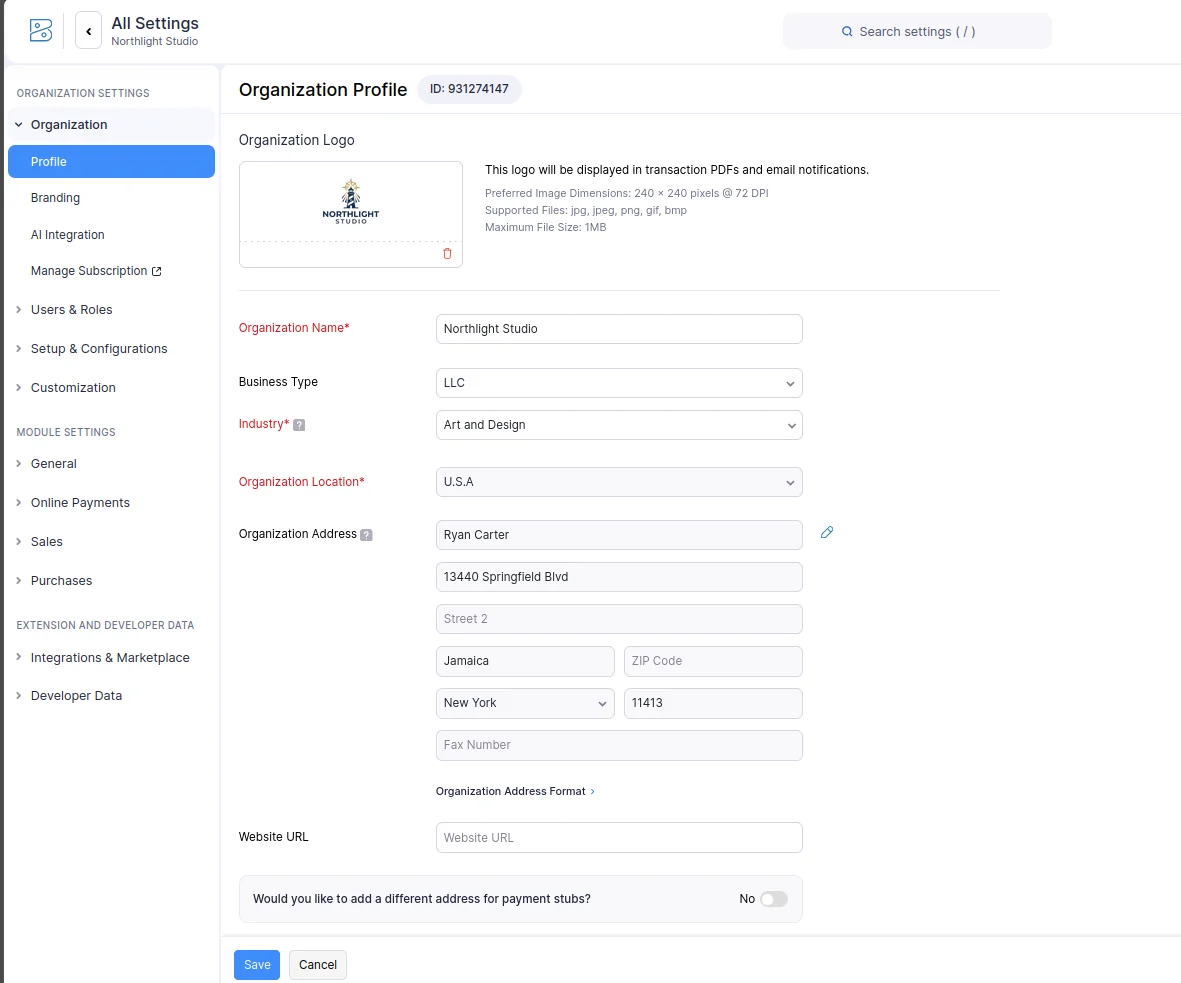
Step 3: Export your data from Wave
Wave gives you two export routes and you’ll probably need both.
Route A: Wave’s built-in Data Export
Go to Settings, then Data Export. There are two separate exports here:
- Export all transactions (Excel or CSV), which gives you a ZIP containing transactions, bills, customers and vendors.
- Export all receipts, a ZIP of your uploaded receipt files.
Both arrive by email to your primary Wave address.
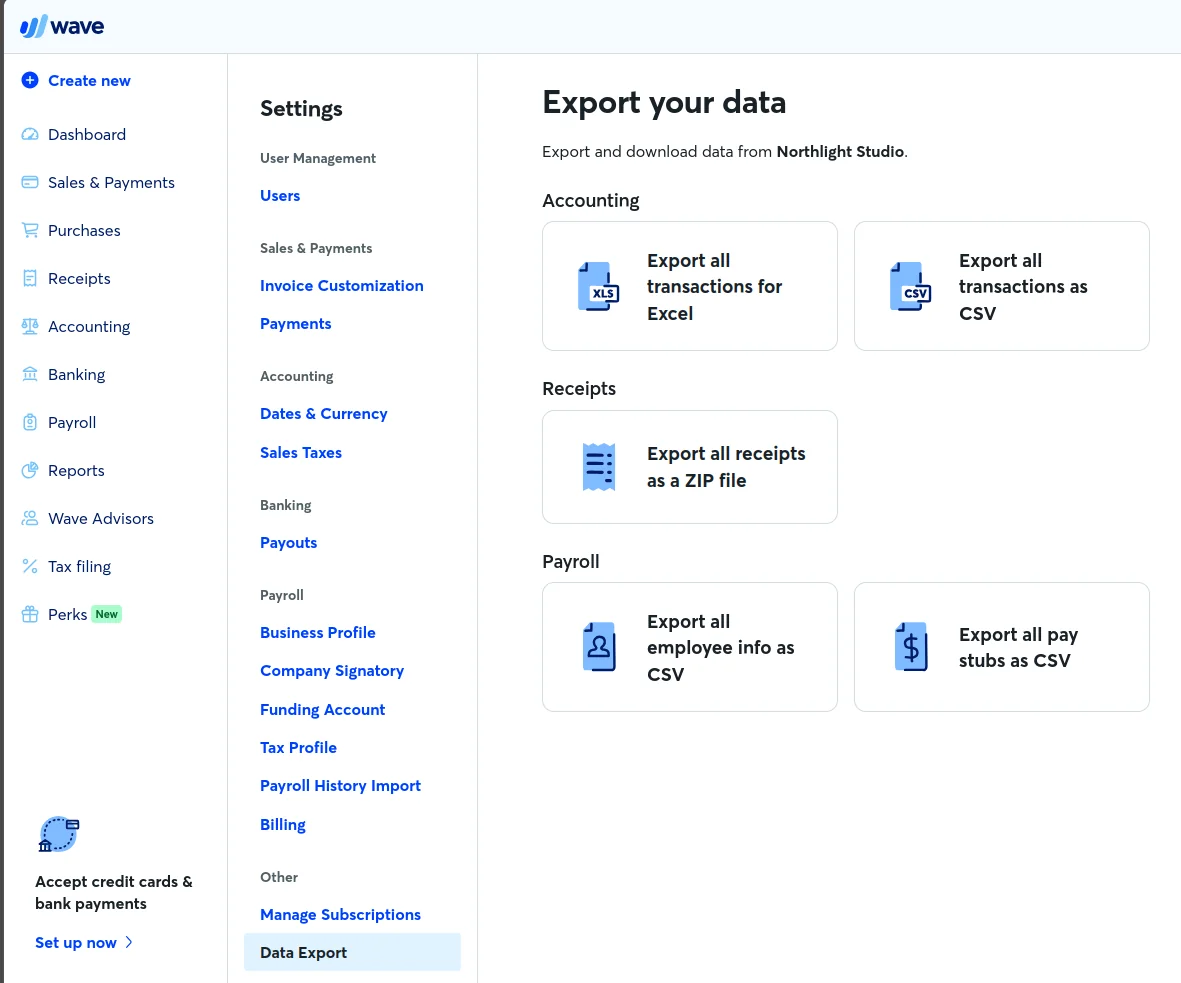
One gotcha almost nobody mentions: those download links expire after 24 hours. Start the export on a Friday evening, get to it Monday, and you’re doing it again. Export when you’re genuinely ready to download.
Route B: Wave Connect, the Google Sheets add-on
The built-in export doesn’t cover everything. For customers, products, invoices, chart of accounts and (most importantly) your Trial Balance, you need the Wave Connect add-on for Google Sheets.
Install it from Wave under Integrations, then Add to Sheets. In a blank Google Sheet, go to Add-ons, then Wave Connect, then Enable for this Sheet, and finally Connect Wave Account.
To pull each dataset: Add-ons, Wave Connect, Download, then pick Customers, Products, Invoices or Chart of Accounts. Select all the available fields. When you’re downloading invoices, set Data to Download to Invoice Data and Payments so the payment records come along too.
Then File, Download, Comma-separated values (.csv, current sheet). Use a new sheet tab for each dataset, because the CSV export only captures whichever sheet is active.
The Trial Balance, which is the one that really matters
Your entire opening balance depends on this one report, so it’s worth slowing down here.
You can pull it two ways. The simpler route is Wave’s own Reports section: open Reports, then Trial Balance, and you’ll get the report directly in the browser with an Export button in the top right. The Wave Connect route (Add-ons, Wave Connect, Reports, Trial Balance) gets you the same numbers inside a Google Sheet, which is handy if you’re already reformatting other files there.
Either way, two settings matter:
- Set the “As of” date to your migration date. Not today’s date, not year end, your migration date.
- Check the Report Type. Accrual (Paid & Unpaid) and Cash give different numbers, so pick whichever basis you set in Zoho Books back in Step 2.
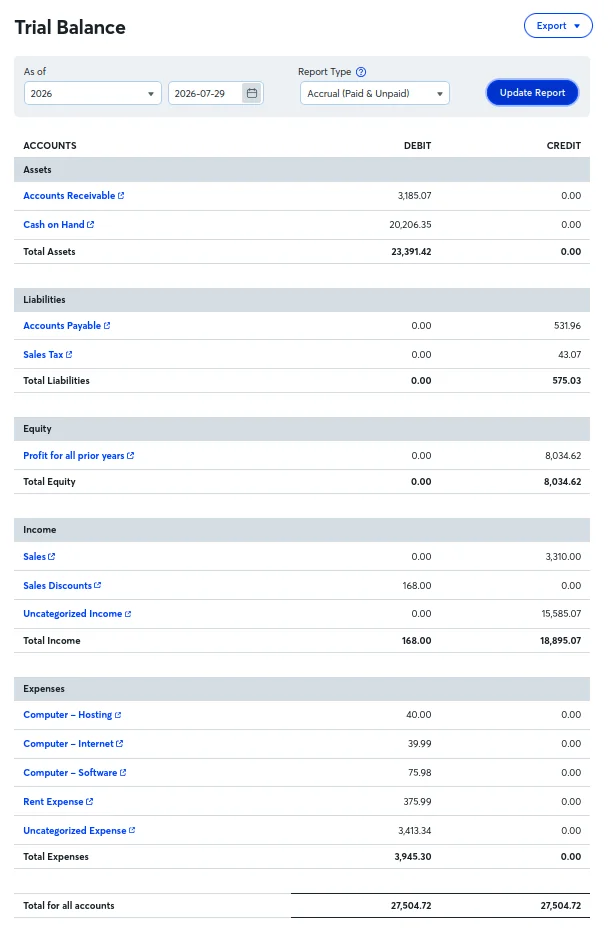
If the “As of” date on this report doesn’t match the migration date you later enter in Zoho Books, your balances import incorrectly and you’ll spend hours chasing a discrepancy with a very boring cause.
Step 4: Run the Zoho Books migration wizard
From your Zoho Books dashboard, click Migrate Data, then I’ve exported data, Proceed to Import Files.
If Wave won’t give you a clean chart of accounts
This trips up a lot of people. Wave’s transaction export isn’t a chart of accounts, it’s a ledger, so uploading it straight into this step throws errors about missing mandatory columns or an empty “Amount (One column)” field. But the data you need is hiding in there. That export includes Account Name, Account Type and Account Group columns on every single row.
Open it in a spreadsheet, keep just those columns, remove the duplicate rows, and you’re left with your actual chart of accounts, usually a dozen accounts or so. Rename the headers to match Zoho’s field names (Account Name, Account Type, Account Code, Description, Currency) and it’ll import cleanly.
You will need to translate the account types, since Wave and Zoho don’t use the same labels. Cash and Bank becomes Cash, System Receivable Invoice becomes Accounts Receivable, System Payable Bill becomes Accounts Payable, Operating Expense becomes Expense, and Sales Tax on Sales and Purchases becomes Other Current Liability. Get a bookkeeper to glance at the sales tax and discount accounts if your setup is at all unusual, because those two are the ones where the mapping is genuinely debatable.
Upload your Customers, Products and Accounting.csv files, then click Import Files. Zoho tells you how many records imported and how many were skipped. Don’t skim past that second number. Skipped records are usually formatting mismatches, and fixing them now is far easier than discovering the gap during a reconciliation three weeks from now.
Next, click Proceed to Import Transactions and upload your invoices file. Remember that this covers outstanding invoices only. Paid ones are a manual job further down.
Then click Proceed to Review Opening Balance, select your migration date, choose your Trial Balance CSV, and click Import Opening Balance. Look over the figures on screen before you confirm, then click Complete Migration.
Timing matters here. If you’re migrating at your financial year end, last year’s closing balances become this year’s opening balances. If you’re migrating mid-year, what you need is the Trial Balance as of your migration date, which is why Step 3 made such a fuss about that date.
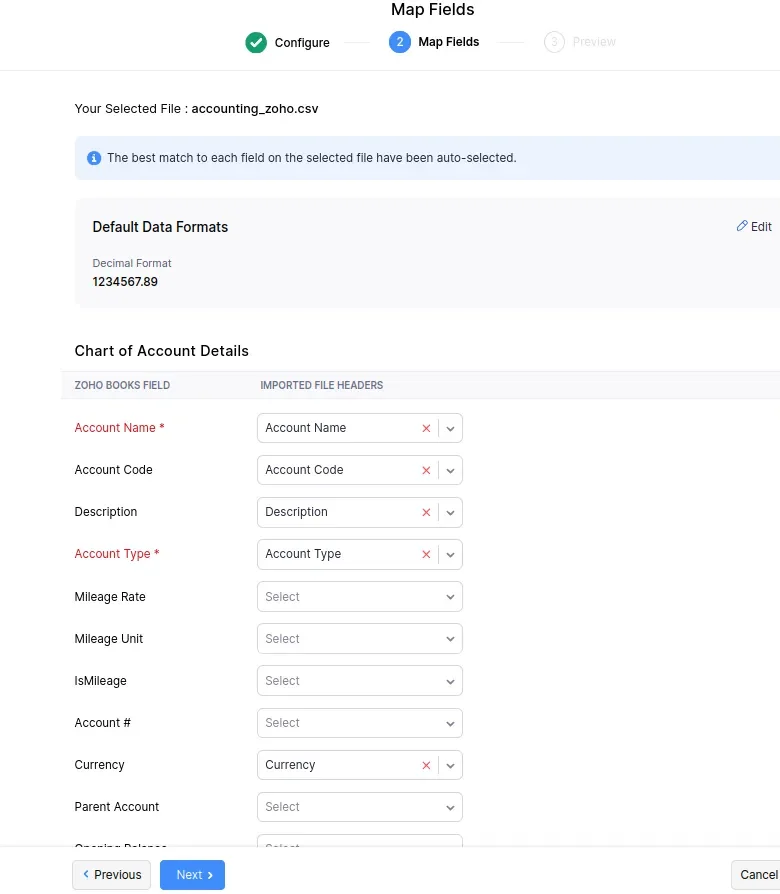
Step 5: Import bills, invoices and receipts manually
Bills. Go to Purchases, Bills, the More icon, then Import Bills. Two constraints will stop you cold if you don’t know about them beforehand:
- The file has to be under 1 MB, so large histories need splitting into batches.
- Bill number is a mandatory field in Zoho Books, while Wave is more relaxed about it. Any bill missing a unique number simply won’t import, so fill those gaps in your spreadsheet first.
Download Zoho’s sample import file before you start, since it shows you the expected column structure. Check your character encoding and delimiter, and go through the field mapping screen properly rather than accepting whatever it guessed.
Paid invoices. Sales, Invoices, More, then Import Invoices, following the same flow. To bring in only settled invoices, filter your spreadsheet to remove every row where Status is unpaid.
Receipts. You’ll need to enable the Documents module first, because it’s off by default and the import will otherwise have nowhere to go. Then upload the receipt files from your Wave ZIP. They land in Documents rather than in Expenses, so think of them as an archive you can attach to expenses later, not as expense records in their own right.
Step 6: Sync and reconcile, and please don’t skip this
This is the stage where migrations either land cleanly or quietly break.
Sync your backdated transactions. Anything dated on or before your migration date has to be synced with your opening balances or your Trial Balance will be wrong. Go to Settings, then Opening Balances, then click Sync. Zoho shows you exactly how many backdated transactions are sitting there waiting.
Compare the two Trial Balances. Generate the report in Wave and in Zoho Books for the same date, then compare them account by account.
They should match exactly. When they don’t, the cause is almost always one of four things: an unsynced backdated transaction, a mismatch between the Trial Balance “As of” date and your migration date, skipped records from an import you didn’t check, or bill payments you haven’t recorded manually yet.
Don’t start invoicing out of Zoho Books until those two reports agree. A discrepancy is far cheaper to fix now than after a month of new transactions has piled on top of it.
Step 7: Rebuild what couldn’t be exported
Now for the manual work flagged at the top:
- Recurring invoices need recreating. If you were auto-charging saved cards through Stripe in Wave, card profiles can be imported, so recurring billing carries on without asking customers to re-enter their details.
- Quotes are worth recreating only if they’re still live. Historical ones rarely justify the effort.
- Receipt transactions go in as expenses.
- Bill payments get recorded against their bills, consolidated by vendor where you can.
Last thing, set up payments. Go to Settings, then Payment Gateways. Stripe is the default gateway on the Global edition, and connecting it restores the online payment capability international Wave users lost.
How long does this actually take?
There’s no universal answer, but roughly:
- Method 1 with simple books: an afternoon.
- Method 2 with a few years of records: budget a full weekend, and expect most of it to go on manual bill payments and reconciliation rather than the wizard itself.
The wizard is the quick part. The manual gaps are the slow part, which is why they’re at the top of this guide rather than buried at the bottom.
Should you migrate to Zoho Books at all?
Zoho Books is Wave’s official partner and the smoothest path off the platform, but the smoothest way to migrate from Wave to Zoho Books isn’t automatically the best decision for your business. Wave was free, Zoho Books is paid above a revenue threshold, and for some people that alone settles it.
If you haven’t firmly landed on Zoho Books yet, compare it against the field before you start moving data. We’ve covered the leading Wave alternatives in 2026, and if Zoho Books is already on your shortlist, our head-to-head of Wave and Zoho Books goes through the feature and pricing differences in detail.
Make that call first. Doing this twice is a miserable way to spend a quarter.
Frequently asked questions
Can I keep using Wave after migrating? Existing accounts outside the US and Canada stay open, and you can still create records manually and view reports. But invoicing and reminders are disabled, support for those regions has been discontinued, and Wave has said access may change in future. Treat it as an archive rather than a fallback.
Will my customers notice the change? They’ll start receiving invoices from a different system. Zoho’s Standard, Simple and Grand templates are the closest match to Wave’s look, and it’s worth sending a short heads-up to regular clients, particularly anyone paying by saved card.
Can I migrate multiple Wave businesses? Yes. What Wave calls businesses, Zoho Books calls organizations, and you can create several. Migrate them one at a time. How many you’re allowed depends on your plan.
What if my numbers don’t match afterwards? Work through the four common causes in Step 6 before assuming something worse has happened. In practice, the Trial Balance date mismatch and unsynced backdated transactions account for most discrepancies.
Last updated: July 2026. Migration steps verified against Zoho Books’ official documentation and tested on a live Zoho Books organization. Zoho changes its import flow occasionally, so if you hit a screen that doesn’t match what’s described here, let us know in the comments.
This article is general information, not accounting or tax advice. If your books are complex, or you’re migrating mid-financial-year, it’s worth having an accountant review your opening balances afterwards.