Vendor Statement Reconciliation Template: Free, Easy Excel Download for Zoho Books
Reconciling a supplier statement is simple in theory. You put their numbers next to yours and work out why they don’t match. In practice it turns into a mess of highlighted PDFs and scribbled notes, and next month you start again from scratch. This free vendor statement reconciliation template gives you one sheet that does the matching for you, shows what’s left to explain and tells you when you’re done.
It’s an Excel file that also opens in Google Sheets and LibreOffice. We built it around Zoho Books, but it works with any accounting software that can show you a vendor balance for a period.
No email required. If you want the full walkthrough of the process inside Zoho Books, read our guide on how to reconcile vendor statements in Zoho Books. This page focuses on the template itself.

What’s Inside the Vendor Statement Reconciliation Template
The file has three tabs, and you’ll spend almost all your time in the first one.
- Reconciliation. The working sheet. At the top you enter the two closing balances, and below them you list the items that explain the gap. A status cell at the top turns green and says “Reconciled” when the unexplained difference reaches zero.
- Summary. A count and total for each type of difference: missing in Zoho Books, missing on the supplier statement and amount mismatches. Handy when you need to tell someone what’s wrong in one line.
- How to use. The short version of this article, in case you share the file with a colleague.
Every calculated cell is a normal formula. There are no macros, no add-ins and nothing hidden, so you can change anything you like.
How to Use the Vendor Statement Reconciliation Template, Step by Step
1. Fill in the header
Type the supplier’s name and the period the statement covers. Use the exact same dates on both sides. Most mismatches that “make no sense” come from comparing a statement dated the 31st with books that already include something from the 1st of the next month.
2. Enter the two closing balances
The first one comes straight from the supplier’s statement. The second comes from your books. In Zoho Books, go to Purchases > Vendors, open the vendor, click the Statement tab and choose the same period (Zoho explains the Statement tab in its help docs). Copy the balance due. The template immediately shows the difference you need to explain.
If the difference is zero, you’re finished. Save the file as a record and move on to the next supplier.
3. List the items line by line
For each invoice, payment or credit note, add a row with the date, the reference and the amount as it appears on each side. Leave a cell empty when one side doesn’t have the item at all. You don’t need to list every single transaction if the statement is long. Start with the ones that look wrong, and add matched items only when you want a complete audit trail.
Use one sign convention throughout. Invoices are positive because they increase what you owe. Payments and credit notes are negative because they reduce it. The template follows the same logic, so the totals only add up if you do too.
4. Read the Result column
You never type into the Result column. It fills itself in for every row:
| Result | What it means | What to do |
|---|---|---|
| Matched | Same amount on both sides | Nothing |
| Missing in Zoho Books | The supplier has it, you don’t | Enter the missing bill or vendor credit |
| Missing on supplier statement | You recorded it, they haven’t yet | Usually a payment in transit. If it’s old, chase the supplier |
| Amount mismatch | Both sides have it with different amounts | Check the original invoice, then correct whichever side is wrong |
5. Fix, then check the status
Correct what’s wrong on your side in Zoho Books and note anything the supplier needs to fix in the Action column. When every difference is accounted for, the unexplained difference shows a dash and the status changes to Reconciled. If it doesn’t, something is still missing from your list.
Vendor Statement Reconciliation Template: A Worked Example
The template comes with example data so you can see how it behaves before you delete it. Here’s the story behind those numbers.
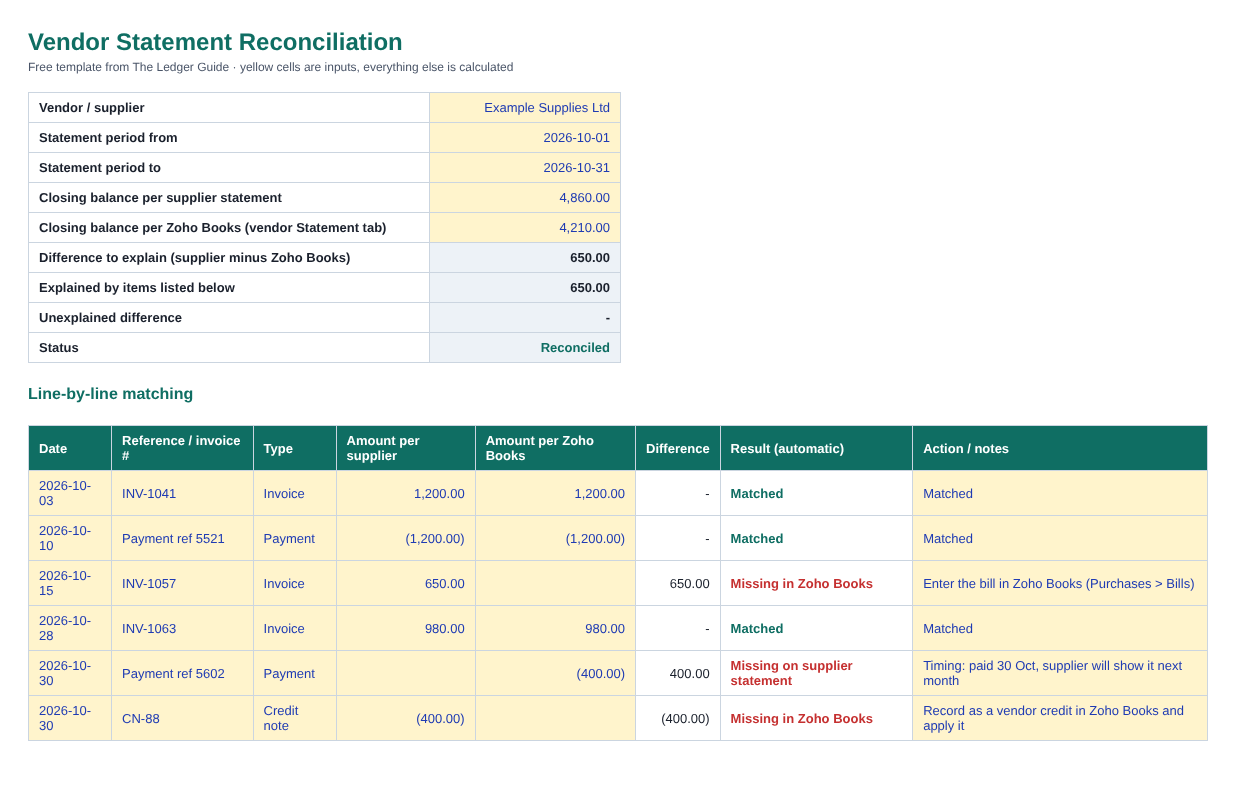
Example Supplies Ltd sends an October statement showing you owe 4,860.00. Zoho Books says 4,210.00. That’s 650.00 to explain. Going through the statement line by line turns up three differences:
- Invoice INV-1057 for 650.00 is on the supplier’s statement but was never entered in Zoho Books. That adds 650.00 to the difference.
- A payment of 400.00 on 30 October is in Zoho Books but not on the statement yet, because it reached the supplier after their cut-off. That adds another 400.00.
- Credit note CN-88 for 400.00 is on the statement but nobody recorded it as a vendor credit. That takes 400.00 off.
650 plus 400 minus 400 is 650, exactly the gap. The status flips to Reconciled, and you have a clear to-do list: enter the bill, record the vendor credit, and expect the payment to show up on next month’s statement.
Using the Vendor Statement Reconciliation Template with Zoho Books
Zoho Books doesn’t have a dedicated button for reconciling supplier statements the way it does for bank accounts, which is exactly why a template like this helps. A few tips that save time:
- Export the vendor statement. From the Statement tab you can download the statement as a PDF, which makes it easy to put both documents side by side.
- Check the payables reports first. Under Reports > Payables, the Vendor Balance Summary shows what you owe each supplier, and the AP Aging Summary highlights old unpaid bills (see Zoho’s guide to these reports). Start with the suppliers where something looks off.
- Reconcile your bank first. If your payments aren’t right in the bank account, they won’t be right on the vendor side either. Our bank reconciliation guide for Zoho Books covers that part.
- Watch your dates when fixing things. If you have to add a bill in a past month, read how backdating works in Zoho Books first, especially if you’ve locked earlier periods.
Using It with Other Accounting Software
Nothing in the file depends on Zoho Books. The only Zoho-specific thing is the label on the second balance. If you use QuickBooks, Xero, Wave or a plain spreadsheet ledger, pull the vendor balance for the same period from your own software and the rest works the same way. Just rename the column headers if it helps your team.
Still choosing software? Our Wave alternatives guide compares the main options, and the Zoho Books review covers what you get on each plan.
Tips to Keep Supplier Reconciliations Quick
- Save one copy per supplier per month. Something like ExampleSupplies_2026-10.xlsx. When an auditor or your accountant asks, you can answer in seconds.
- Match on invoice number, not just amount. Two invoices for the same amount are common, and matching only on value hides real errors.
- Do your biggest suppliers monthly and everyone else quarterly. Always reconcile everyone before year-end.
- Don’t “fix” timing differences. A payment that’s simply in transit will sort itself out next month. Note it in the Action column and leave your books alone.
- Carry open items forward. Anything still unexplained at the end of the month goes onto next month’s sheet as the first rows, so nothing gets lost.
Wrapping Up
A vendor statement reconciliation template won’t stop suppliers from sending confusing statements, but it turns the job into a routine. Two balances at the top, a list of differences below, and a status that tells you when you’re done. Download it, try it on your biggest supplier this month, and keep the file as your record. When you get stuck on the Zoho Books side, the step-by-step vendor reconciliation guide has the details.
FAQ
Is the vendor statement reconciliation template really free?
Yes. Download it, change it, share it with your team. There’s no sign-up and no email form.
Does it work in Google Sheets?
Yes. Upload the .xlsx to Google Drive and open it with Google Sheets. The formulas, the dropdown in the Type column and the color coding all carry over.
What’s the difference between a supplier statement and a vendor statement?
None. “Supplier” is more common in the UK and “vendor” in the US, and Zoho Books uses “vendor”. Some accountants also call it creditor reconciliation or accounts payable reconciliation. It’s all the same job.
Why should the difference be supplier minus Zoho Books?
It just needs to be consistent. The template calculates every line the same way, so a bill missing from your books shows as a positive difference and a payment the supplier hasn’t recorded shows as a positive difference too. As long as you keep invoices positive and payments negative, the totals line up.
How many lines can I add?
The table has 100 ready-made rows with formulas. If you need more, copy the last row down, then extend the range in the “Explained by items listed below” formula and on the Summary tab so the new rows are counted.