How to Set Up Recurring Invoices in Zoho Books (Manual Setup vs. CSV Import)
Recurring invoices in Zoho Books exist so you don’t have to rebuild the same invoice every month for a retainer client or subscription customer. Zoho Books gives you two ways to set them up: filling out a profile by hand, or importing a batch of them from a CSV. We tested both in our own account, and they don’t behave quite the same way once you get past the basics.
Setting up recurring invoices in Zoho Books manually
Open Sales > Recurring Invoices and click New to start a profile. Once you have profiles running, this is also where you’ll see them listed with their status, frequency, and next invoice date.

The new profile form asks for the customer, a profile name, and the recurrence schedule up front. “Repeat Every” here is a single dropdown (Day, Week, Month, Year), paired with a start date and either an end date or “Never Expires.”
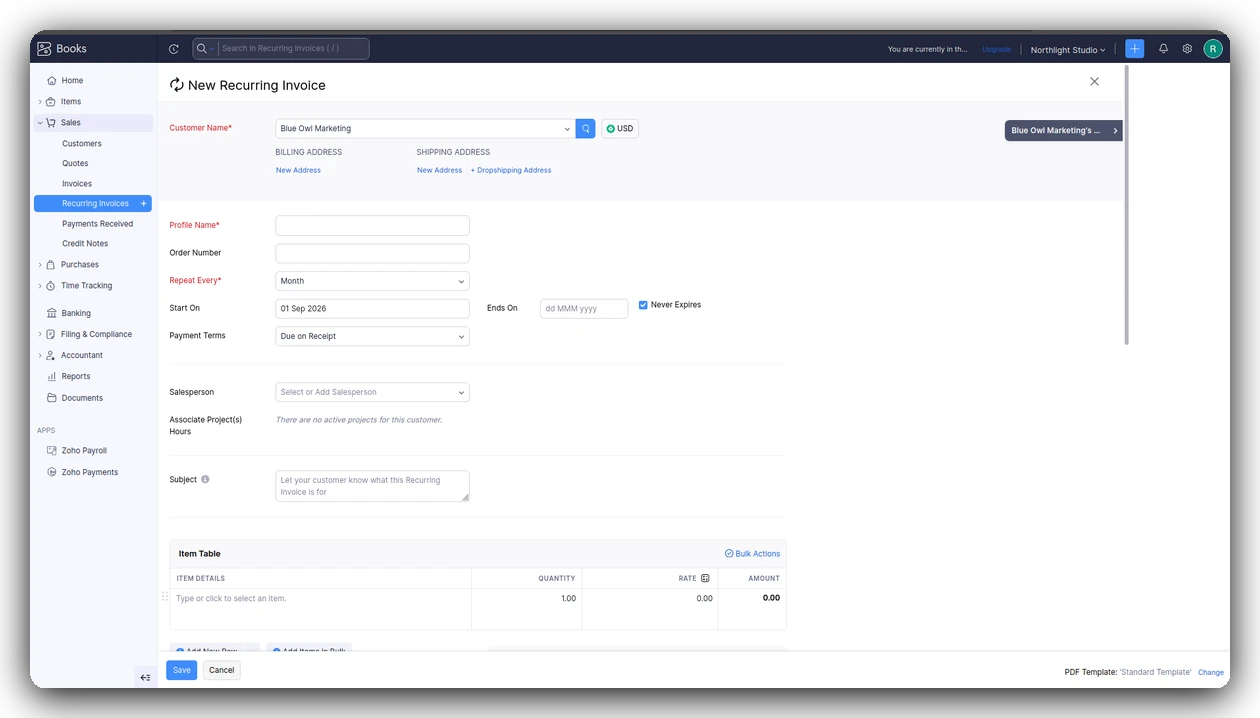
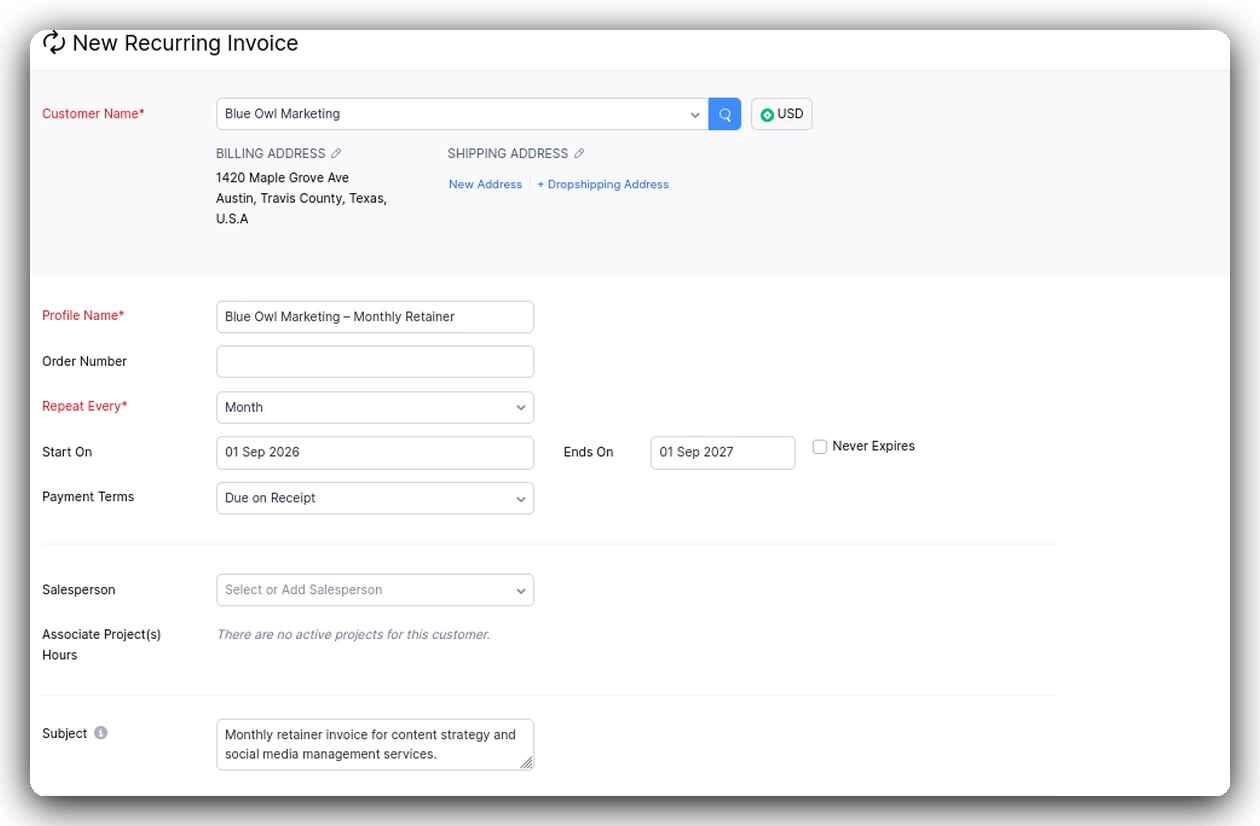
If your arrangement has a natural end point instead, like a 12-month contract, you uncheck “Never Expires” and Zoho requires you to enter a specific end date. Here’s the same form filled out for a fixed-term retainer with a full billing address attached:
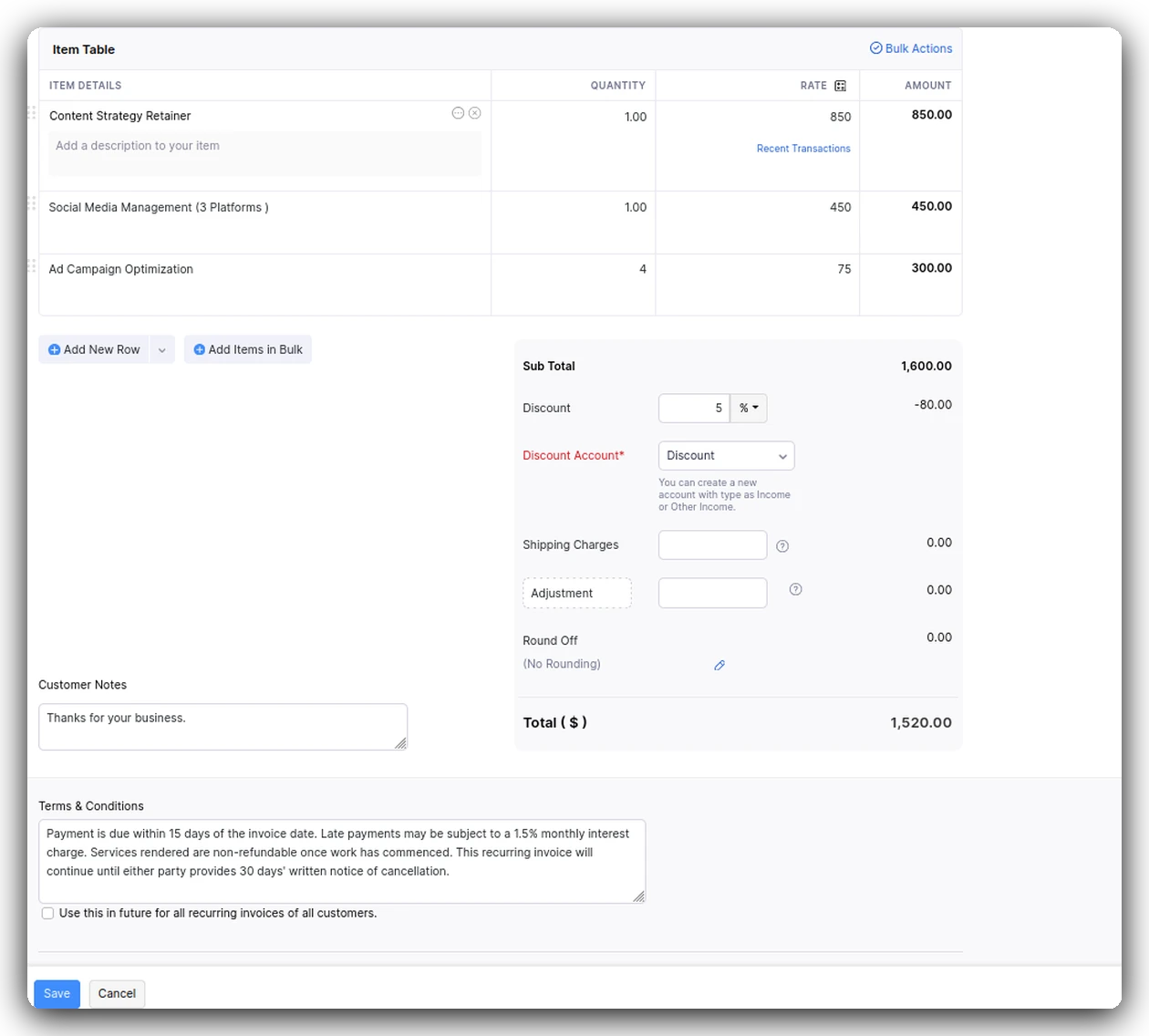
Below the schedule fields is the item table, where you add each line item, its quantity, and rate. This is also where discounts tie into your bookkeeping more directly than you might expect. Adding a discount at the subtotal level (as opposed to a per-item discount) requires you to assign a Discount Account, a field tied to your chart of accounts, so Zoho knows where that discount amount should land in your books. The profile won’t save until that field is filled in.
Further down the form, you’ll find customer notes, terms and conditions, and a card promoting Zoho Payments for online collection. Worth flagging clearly: the 2.90% + $0.30 per transaction fee shown here is the payment processor’s cut, not the price of your Zoho Books subscription. It’s easy to misread that as a software fee if you’re skimming.
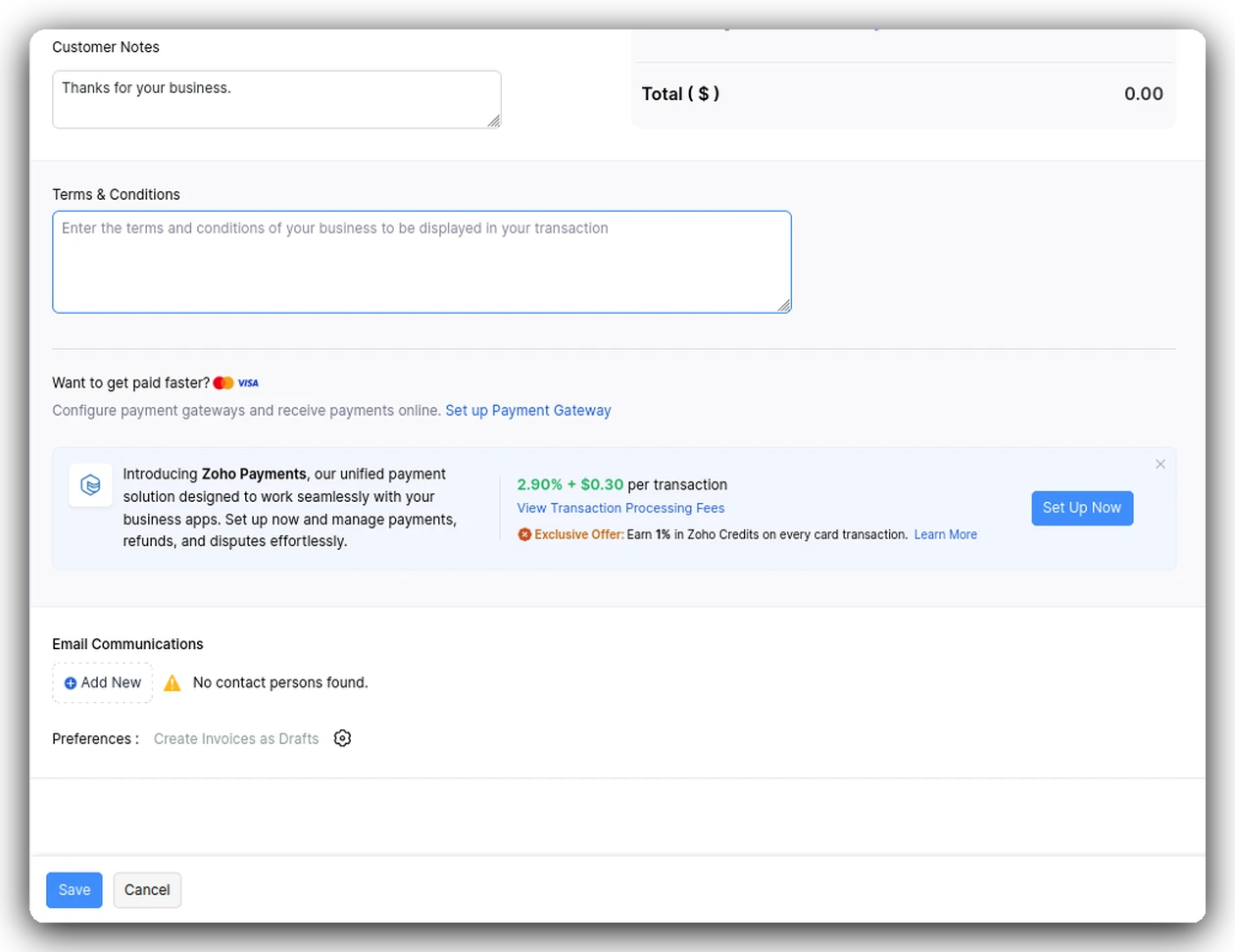
The last setting, tucked behind a small gear icon near the bottom of the form, controls how generated invoices actually reach your customer. There are three tiers, not just an on/off toggle:
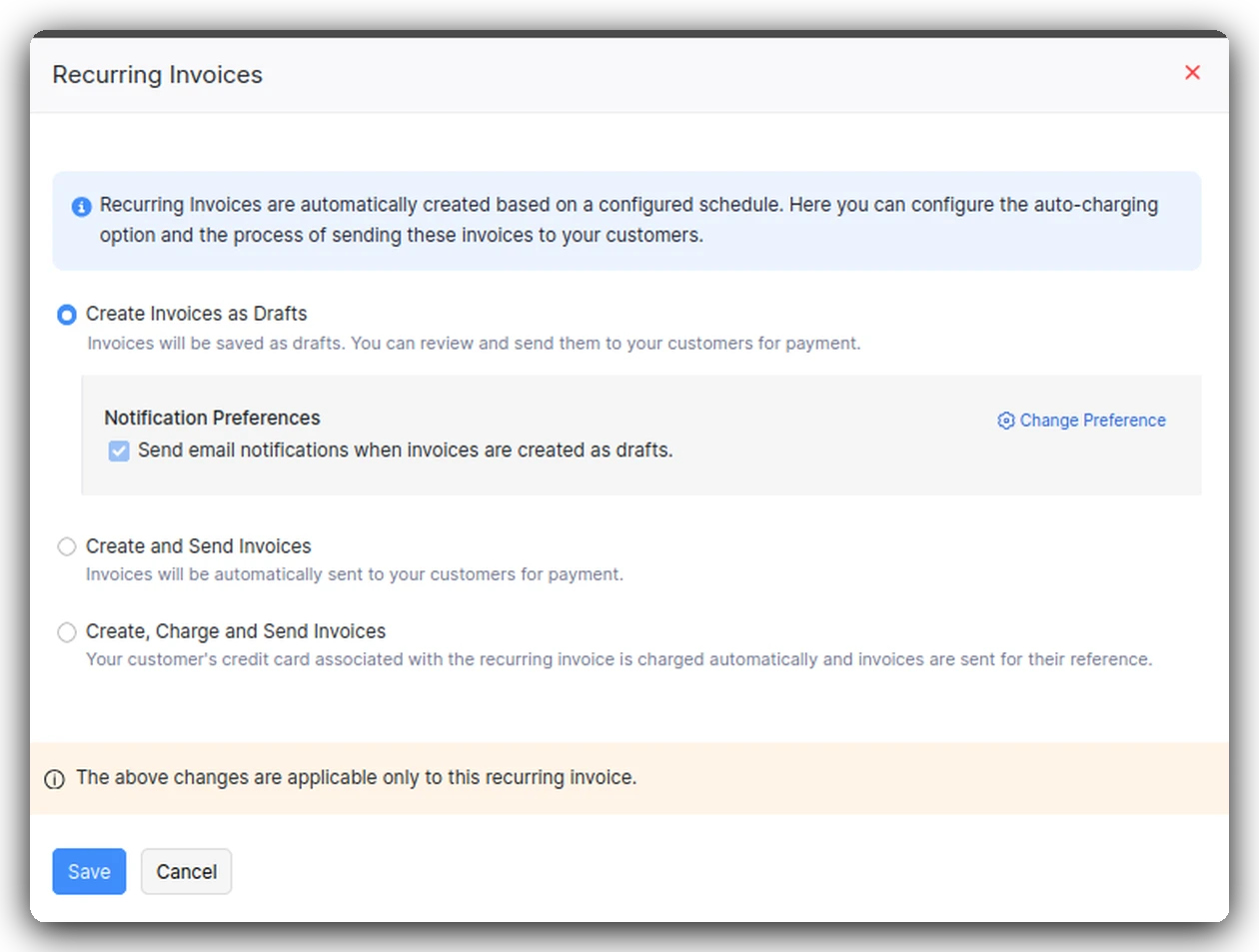
- Create Invoices as Drafts generates the invoice but leaves it for you to review and send manually, with an optional email notification when a new draft is created.
- Create and Send Invoices generates and emails the invoice automatically.
- Create, Charge and Send Invoices goes further still: it charges the customer’s saved card automatically and sends the invoice as a receipt.
Once you save the profile, its detail page shows the next invoice date, the recurring period, and the billing address on file.
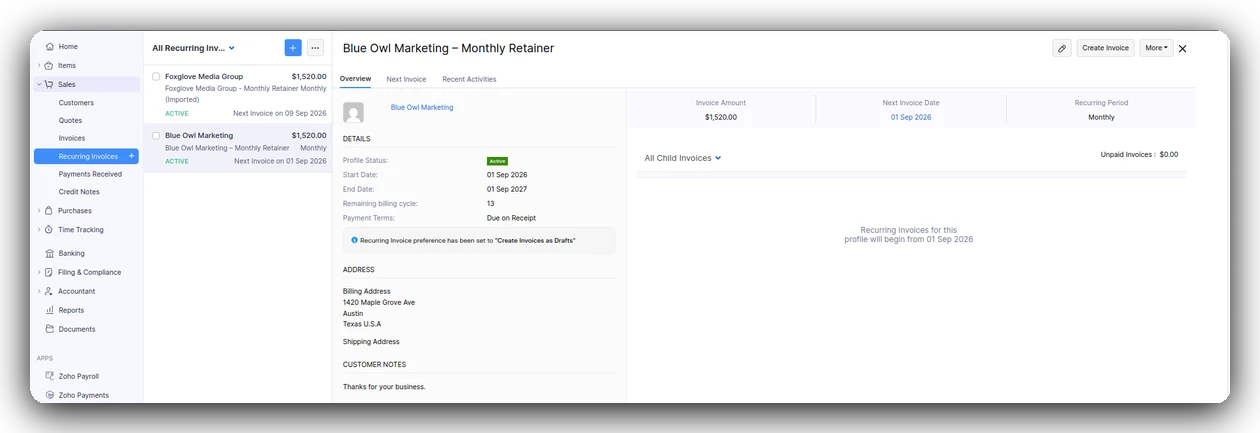
One small oddity worth a second look: our test profile ran from September 1, 2026 to September 1, 2027, a full 12-month span on a monthly schedule, but the “Remaining billing cycle” field showed 13. That may just be an inclusive count of both the first and last invoice, but if you’re relying on that number for planning, it’s worth double-checking against your actual invoice history rather than trusting it at face value.
Importing recurring invoices in Zoho Books via CSV
If you’re setting up more than a handful of profiles, for example migrating a full list of retainer clients from a spreadsheet, Zoho Books also lets you import recurring invoices directly. Go to Sales > Recurring Invoices, click the More icon, and select Import Recurring Invoices. The file size cap is 1MB, and Zoho lets you download an official sample file to match the expected format, as outlined in Zoho’s own documentation.
The CSV template uses different field names than the manual form. A few worth knowing:
- Repeat Every and Recurrence Frequency are two separate columns in the CSV, where the form combines them into one dropdown. To bill every two months, you’d set Recurrence Frequency to “Monthly” and Repeat Every to “2.”
- There’s no “Never Expires” field. You just leave End Date blank.
- Discounts are handled through Discount Type (
entity_leveloritem_level) plus Entity Discount Percent or Discount, depending on which level you’re applying it at. - Branch Name is marked as a required field in Zoho’s own specification sheet, which can be easy to overlook if your account doesn’t actively use multiple locations.
Here’s where it gets interesting. We imported a profile with a 5% entity-level discount using only the Discount Type and Entity Discount Percent columns, with no equivalent to the Discount Account field the manual form requires. It imported cleanly, calculated correctly ($1,520 from a $1,600 subtotal), and activated without any error or missing-field prompt.
We also imported a profile for a customer who didn’t exist yet in our contacts. Zoho created the customer record automatically during the import rather than rejecting the file.
Manual setup vs. CSV import: which one to use
Both ways of setting up recurring invoices in Zoho Books get the job done, but they diverge exactly where it matters. If you’re setting up one or two recurring profiles, the manual form works well, and it makes sure you’ve mapped any discount to your chart of accounts as you go. If you’re setting up several at once, the CSV import is faster and, at least in our test, didn’t require that same mapping upfront. That said, it’s worth spot-checking your chart of accounts afterward to confirm the discount landed where you expected, since the import doesn’t ask you to choose.
FAQ
Can I edit a recurring invoice profile after it’s active? Yes. The profile detail page includes an edit icon in the top right, so you can go back in and adjust line items, pricing, or the schedule after the fact.
Does Zoho Books notify me when a recurring invoice is generated? If you’re using the “Create Invoices as Drafts” setting, there’s a built-in notification preference to send an email whenever a new draft is created. The other two sending modes handle notification differently since the invoice goes out automatically.
What happens if I import a recurring invoice for a customer who isn’t in my contacts yet? Zoho Books creates the customer record automatically as part of the import rather than rejecting the row.
Related reading
If you’re still deciding whether Zoho Books is the right move for your business, our full Zoho Books review and Wave vs Zoho Books comparison cover how it performs day to day, based on testing both platforms firsthand.