Reconcile Bank Transactions in Zoho Books: 5 Simple Steps
If you just moved from Wave, one of the first things you’ll want to check is whether you can reconcile bank transactions in Zoho Books without a headache. Short answer: yes, but there are a couple of steps that aren’t obvious the first time around, especially around categorizing transactions before you even get to the reconciliation screen. We tested the full flow in a live account, so every screenshot below is from an actual run, not a mockup.
Before You Start: Add a Bank Account
If you’re setting up Zoho Books for the first time, the Banking module will be empty and you’ll see an “Add Bank or Credit Card” button instead of a list of accounts.
You don’t need to connect your real bank to follow along or to test the feature. On the connection screen, look for the manual option instead of picking a bank from the list. You’ll fill in:
- Account Type (Bank or Credit Card)
- Account Name
- Account Code
- Currency
- Account Number and Routing Number (or Bank Identifier Code outside the US)
- Bank Name
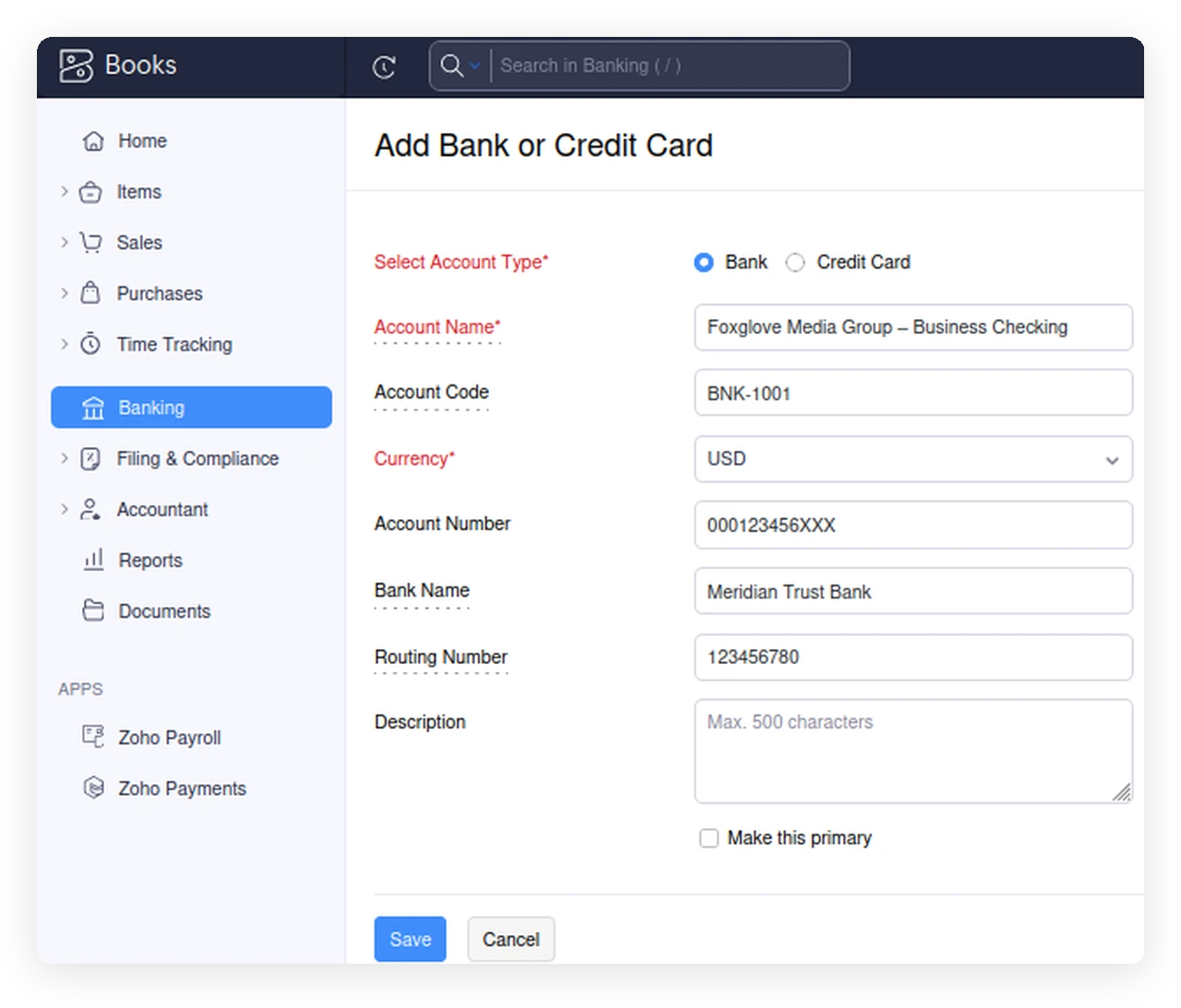
Save it, and you’ll land on an empty account with zero transactions. That’s expected.
Get Some Transactions Into the Account
You can add transactions two ways: type them in one by one, or import a bank statement (CSV, OFX, QIF, and a few other formats are supported). If you’re importing a CSV, Zoho Books will ask whether your file has separate columns for deposits and withdrawals, a single column with a debit/credit type, or a single column where negative numbers mean money out. Pick whichever matches your file and map the columns on the next screen.
Either way, once the transactions land in Zoho Books they show up as uncategorized. That’s normal, not an error. You’ll need at least a few categorized transactions before you can reconcile bank transactions in Zoho Books, so don’t skip the next step.
Categorize Before You Reconcile
This is the part that trips people up. Only transactions that are matched, categorized, or added manually will show up later in the reconciliation window. Uncategorized transactions just sit there and won’t appear as selectable options.
Inside the account, go to the Uncategorized Transactions tab. For each one you’ll see two tabs on the right: Match Transactions and Categorize Manually.
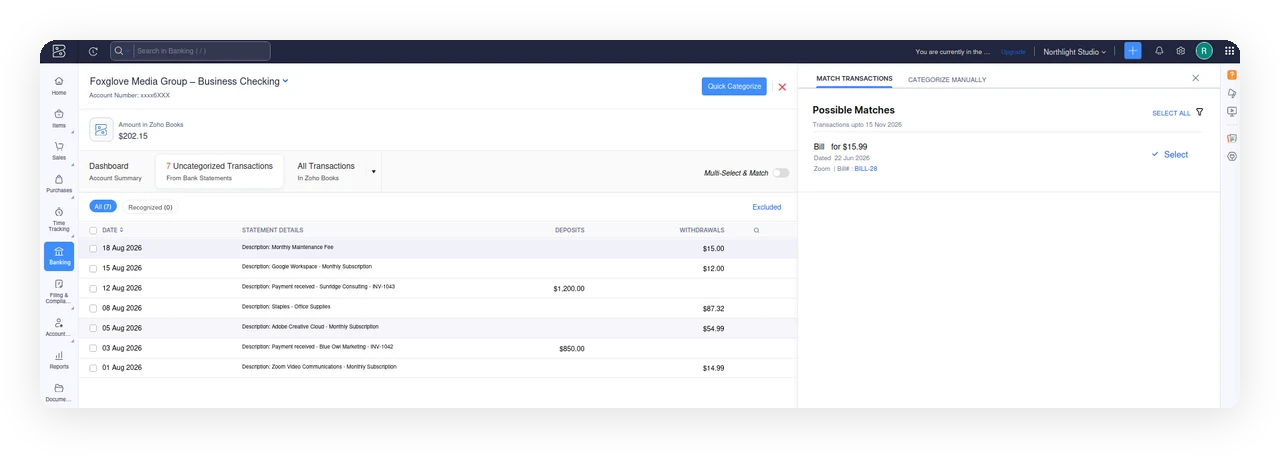
If you already have invoices or bills recorded in Zoho Books, you might see a Possible Match suggestion. Check the amount carefully before accepting one, a match with a different amount than your actual transaction will leave a gap later. If there’s no real match (which is the normal case for anyone just getting started), switch to Categorize Manually, pick an income or expense account, and save.
Do this for every transaction before you try to reconcile bank transactions in Zoho Books, or the reconciliation screen will show up empty. If you have recurring vendors, Zoho Books will offer to save a rule after the first time you categorize one, so future transactions from that vendor get pre-filled automatically. It’s not fully hands-off from day one, but it does save time once you have a few rules in place.
How to Reconcile Bank Transactions in Zoho Books
Once everything is categorized, this part is quick:
- Open the account and click the gear icon in the top right corner.
- Select Reconcile Account, then Initiate Reconciliation.
- Enter the Start Date and End Date for the period you’re reconciling.
- Enter the Closing Balance for that period. This should match your actual bank statement, or if you’re just testing, whatever balance Zoho Books already shows for the account.
- Click Start Reconciliation.
You’ll get a list of every categorized transaction inside that date range, each with a checkbox. Select the ones you want to include. As you check boxes, the Cleared Amount at the bottom updates and Zoho Books calculates the Difference between that and your Closing Balance.
The goal is a Difference of exactly $0.00. Once you hit that, the Reconcile button becomes active.
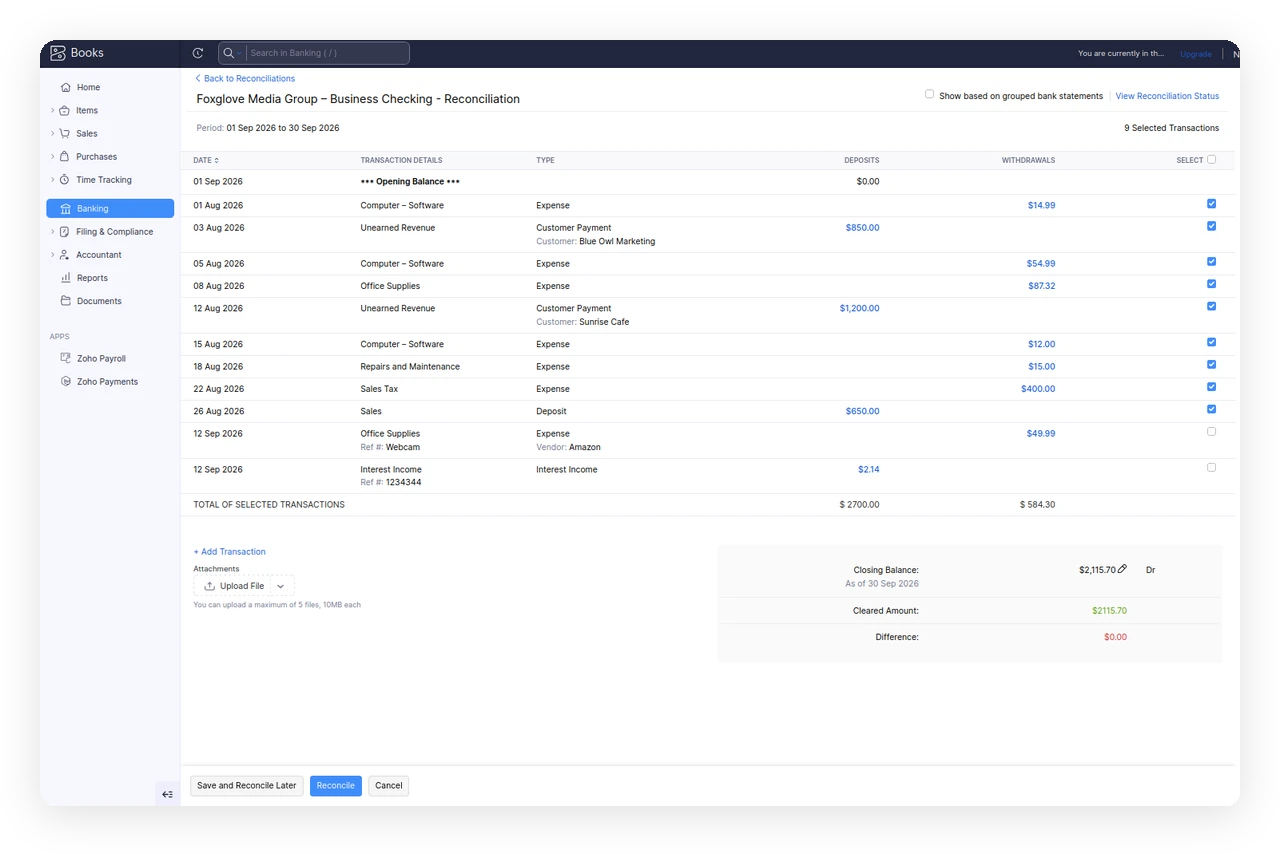
What If the Numbers Don’t Match?
A few things caused mismatches for us while we tried to reconcile bank transactions in Zoho Books during testing, in case they save you some time:
- Wrong Closing Balance. This is the most common one. The Closing Balance has to equal the total of every transaction you plan to select, not an arbitrary number. If your Difference is oddly specific, like exactly the amount of one transaction, that transaction is probably the one not selected yet.
- Unconfirmed edit. If you edit the Closing Balance field and click away without confirming the change, it can silently reset to $0.00. Double check the field actually updated before assuming something else is wrong.
- Transactions outside the date range. Anything dated after your End Date won’t be available to select, even if it’s already categorized. Adjust the period or leave those for the next reconciliation.
Checking Your Reconciliation History
Once you click Reconcile, the period moves into your reconciliation history for that account. You can get there from the same gear icon menu.
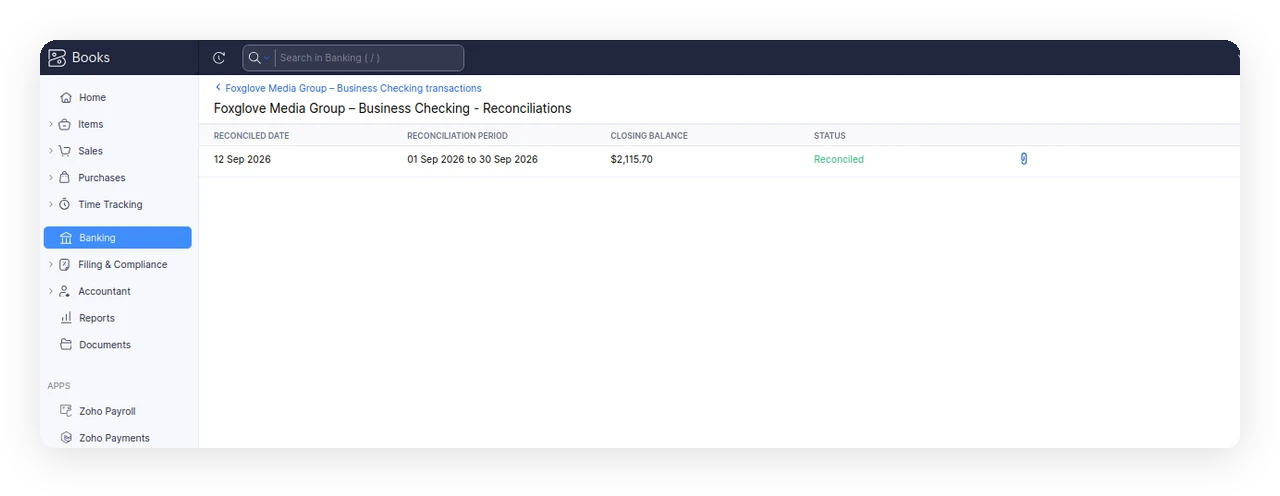
This is a good place to double check dates and closing balances later, especially if you’re reconciling monthly and want to confirm nothing got missed.
Can Zoho Books Auto-Categorize Bank Transactions?
Not automatically from the start, but it gets there. According to Zoho’s own documentation on reconciliation, only matched, categorized, or manually added transactions are eligible for reconciliation, which means the first pass always needs a human decision. After that, Transaction Rules can take over for recurring vendors, so a monthly software subscription or a recurring client payment won’t need to be categorized by hand every time.
If you’re coming from Wave and used to a more automated feed experience, expect a bit more manual setup in the first few weeks. After that, most of the busywork disappears.
Wrapping Up
Once you know categorization comes first, you can reconcile bank transactions in Zoho Books in a couple of minutes each month. Get your account added, get a handful of transactions categorized, and the reconciliation screen itself is quick. If you’re still comparing tools, our Wave alternatives guide covers how Zoho Books stacks up against other options for freelancers and small teams.